Feature Spotlight: Company Branding
First Impressions Start in the Client’s Inbox
When you run your own appraisal firm, every client touchpoint is part of how clients experience your brand - the invoice they receive, the messages you send them, the client order form they fill out. Out of the box, most appraisal platforms send these from a generic template that doesn’t carry your logo or colors, so clients see less of your firm than they should.
Why Branded Client Communications Matter
Without your firm’s branding on client-facing surfaces, appraisers run into:
- Lower brand recall: When nothing visually ties a report or invoice back to your firm, clients have a harder time remembering who delivered it
- Weaker professional impression: Plain, unbranded invoices and order forms can feel less polished next to the vendors and lenders your clients work with every day
- Manual workarounds: Pasting your logo into PDFs by hand, or sending follow-ups from a separate branded email tool
What is Company Branding?
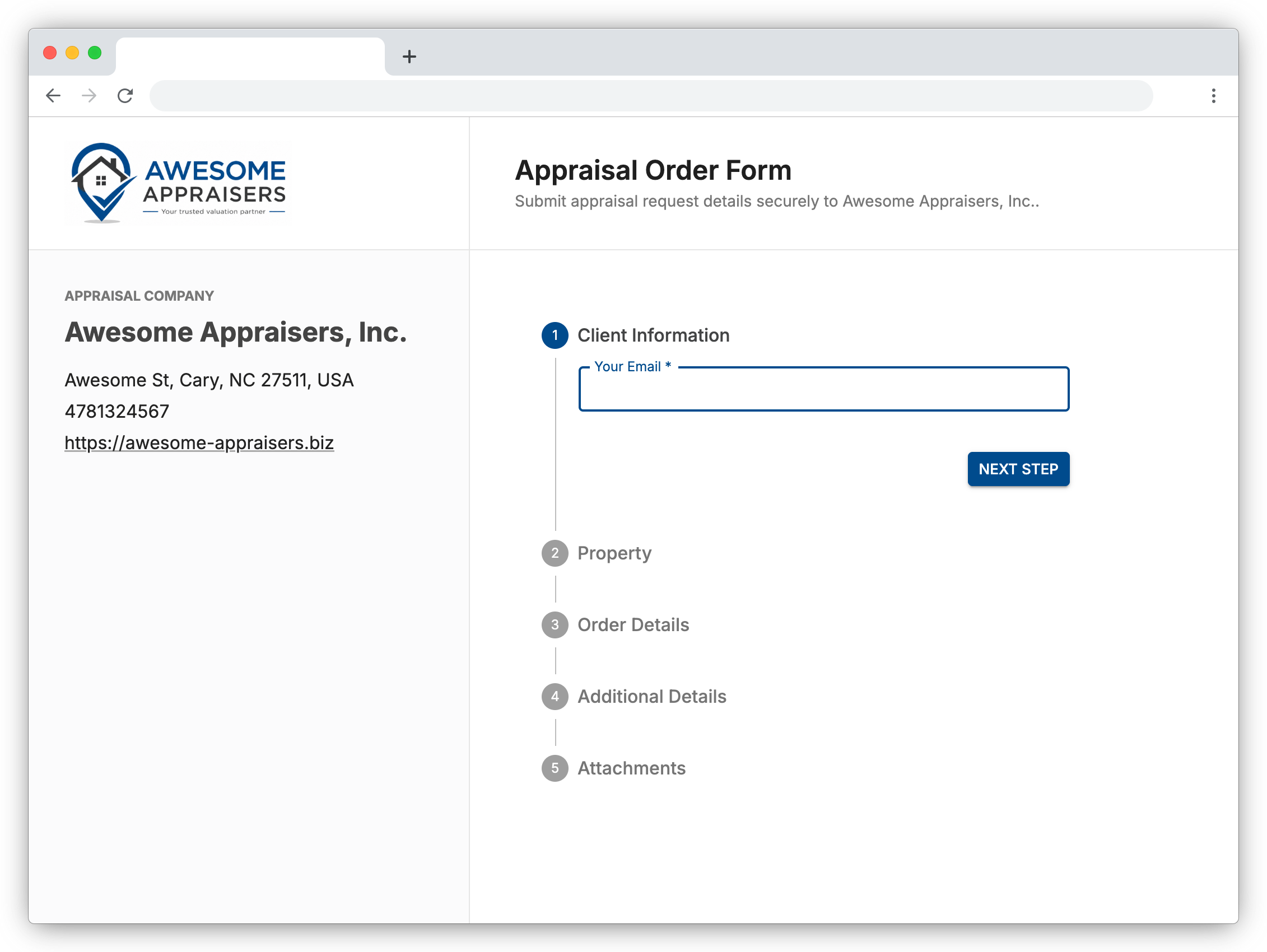
Company Branding in Appraisal Inbox lets you apply your firm’s logo and brand colors across every client-facing surface from one settings screen. Your logo shows up on invoice PDFs, branded emails to clients, the public Client Form, and team notifications - automatically and consistently. Set it up once and every touchpoint reflects your firm.
Key Benefits of Company Branding
- A consistent firm identity across client touchpoints: Logo and brand colors appear on invoices, client emails, and the public Client Form
- Different branding for clients vs. your team: Independently toggle branding for team emails, client emails, invoices, and the Client Form
- Setup without design work: Auto-detect your firm’s logo and colors from your website, or detect colors from an uploaded logo
Auto-Detect Branding From Your Website
The fastest way to set up branding is to let Appraisal Inbox read your firm’s website. Click Try it in the top banner of the Branding settings page and we’ll fetch your logo and brand colors automatically.
No firm website? Upload a logo manually, then click Auto-detect colors from logo to suggest a primary and accent color from the image itself.
Granular Control Over What Gets Branded
Not every email needs to look client-facing. Company Branding has independent toggles for team emails, contact emails, the Client Form, and invoice PDFs. Invoices keep their body black and white so line items and totals print cleanly - your logo sits top-right.
You also choose which contact details from your Organization settings - address, phone number, website URL - appear on branded surfaces. Want your address on invoices but not in every team notification? Toggle accordingly.
Part of Your Complete Appraisal Workflow
Company Branding ties directly into the other features that touch your clients:
- Client Form: The public order form itself is themed with your logo and colors
- Invoices: Your logo sits top-right on invoice PDFs and the invoice email your client receives
- Team email notifications: Assignment alerts, daily agendas, and order-received notices to your team carry your firm’s branding
- Customer Relationship Manager: Messages you send clients from the CRM go out as branded emails
Your Firm, Front and Center
Company Branding keeps Appraisal Inbox in the background and your firm’s identity consistent across every invoice, every client email, and every order form clients touch - without the manual work of inserting logos or colors yourself.
Open Settings > Branding in Appraisal Inbox and click Try it to set up branding from your firm’s website in under a minute.
For a complete overview of features that streamline appraisal workflows, visit our features page.
Recent Posts
Feature Spotlight: Tags & Priority Flags
Label and triage appraisals with color-coded tags and four-level priority flags, visible on the orde...
Read moreFeature Spotlight: Export Appraisal Orders to UAD 3.6
Export any residential appraisal order from Appraisal Inbox as a UAD 3.6 MISMO XML zip and import it...
Read moreHow Long Will UAD 3.6 Inspections Actually Take?
UAD 3.6 inspections will probably take longer at first. Where the new data-capture time actually goe...
Read more