Feature Spotlight: Invoicing
Getting Paid Without the Invoicing Slog
For most appraisal firms, billing happens somewhere else: QuickBooks, a spreadsheet, an accounting app you log into a few times a week. Every invoice means re-typing the client’s address, copying over the file number and fee, attaching a PDF, then watching a separate inbox for the reply. The appraisal record never knows what was billed, when it was sent, or what the client said back.
What is Invoicing in Appraisal Inbox?
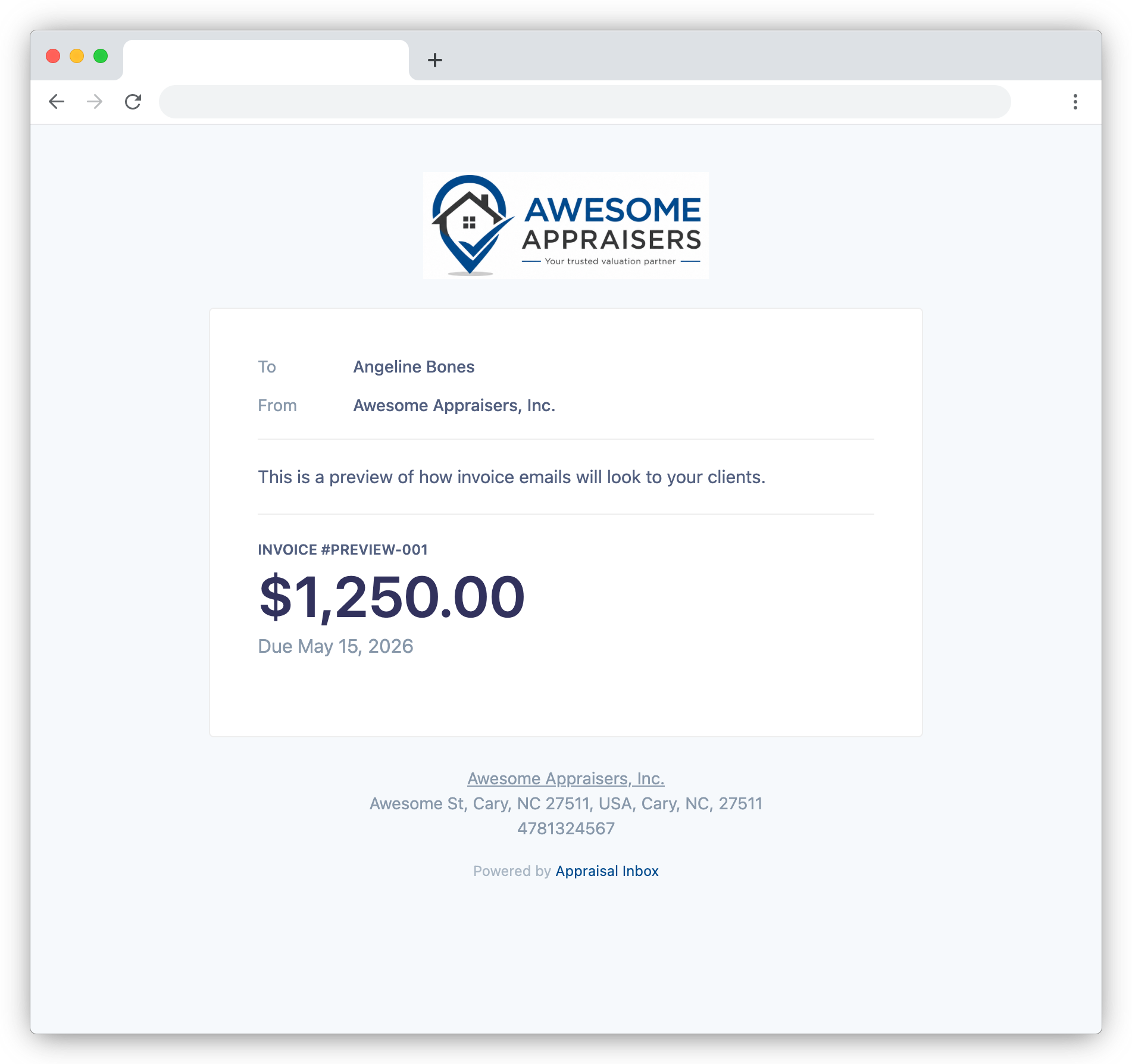
Invoicing in Appraisal Inbox lets you bill, send, and track invoices in the same place you manage the order. Client details, file numbers, and fees flow through from the appraisal automatically, and the timeline shows when each invoice is opened, paid, and replied to.
Key Benefits
- Bill from the same place you manage the order: No re-typing client details, file numbers, or fees into a separate accounting app
- Delivery you can verify: See when invoices are delivered, opened, clicked, or bounced, and retry just the failed addresses
- Replies stay with the invoice: Client questions on payment or amounts land on the invoice’s Messages tab, not your personal email
- Three creation modes: Automatic, Manual, or Disabled, depending on whether your firm bills inside or outside Appraisal Inbox
Send Invoices and Track Delivery
Send Invoice is a quick action on the invoice’s activity feed. Pick the contacts, optionally add a message, and the PDF is generated and attached automatically. When the email goes out, the invoice flips from Draft to Sent.
The activity timeline tracks each event: delivered, opened, clicked, and bounced. If a send fails for one contact but goes through for the others, you can retry just the failed addresses without re-sending to everyone.
A Messages Tab for Each Invoice
Every invoice has its own Messages tab tied to the invoice itself. The first send creates the thread, attaches the invoice PDF, and optionally includes workfile attachments. When the client hits reply, the response lands directly on the Messages tab so payment questions and requests for a revised total live with the invoice instead of buried in your personal email.
Three Ways to Create Invoices
Three creation modes in Settings > Invoices:
- Automatic: A Draft invoice is created the moment fees are set. If the fee changes while still in Draft, the amount syncs automatically; once sent, the amount locks to protect what your client received.
- Manual: A Create Invoice card appears in the appraisal’s activity feed once fees are set. Click it for a pre-filled form, or open the full Invoices view to bill multiple appraisals on one invoice or add non-appraisal line items.
- Disabled: For firms that bill outside Appraisal Inbox, invoice cards are hidden and a Paid Date field on the appraisal’s Engagement tab tracks payment without the full invoicing surface.
When an appraisal has both an Ordered By and a different Addressed To client (the AMC-Lender scenario), the Create Invoice form lets you pick which one to bill.
For the full walkthrough, see the Invoice Creation support article.
Part of Your Complete Appraisal Workflow
- Company Branding: Invoice PDFs and emails carry your logo and brand colors
- File Number Configuration: Invoices share the appraisal’s numbering pattern, or inherit the file number directly
- Customer Relationship Manager: Invoice contacts and communication history stay tied to the client record
- Fee & Expense Tracking: Fees on the appraisal flow straight onto the invoice as line items
Get Paid Faster
Open Accounting > Invoices in Appraisal Inbox to send your first invoice, or visit Settings > Invoices to choose how invoices are created for your firm.
For a complete overview of features that streamline appraisal workflows, visit our features page.
Recent Posts
Feature Spotlight: Company Branding
Apply your firm's logo and brand colors to invoice PDFs, client emails, the public Client Form, and ...
Read moreFeature Spotlight: Tags & Priority Flags
Label and triage appraisals with color-coded tags and four-level priority flags, visible on the orde...
Read moreFeature Spotlight: Export Appraisal Orders to UAD 3.6
Export any residential appraisal order from Appraisal Inbox as a UAD 3.6 MISMO XML zip and import it...
Read more