Feature Spotlight: Tags & Priority Flags
Every Firm Runs a Different Order Flow
No two appraisal firms organize their pipeline the same way. One shop may run mostly lender work; another splits between REO, estate, and government assignments; another handles a long tail of complex commercial files.
Appraisal Inbox already shows a lot of structure on the order list out of the box. Purpose, Loan Type, Property Type and Subtype, Status, Assignee, and due date are all there as columns, filters, and on-row markers. What they can’t capture is the layer specific to your firm: which lender or referral source, REO vs estate vs probate, where each file sits in your internal review, the rushes that need attention this morning. Without a way to encode that, the triage lives in your head or in spreadsheets.
What Are Tags and Priority Flags?
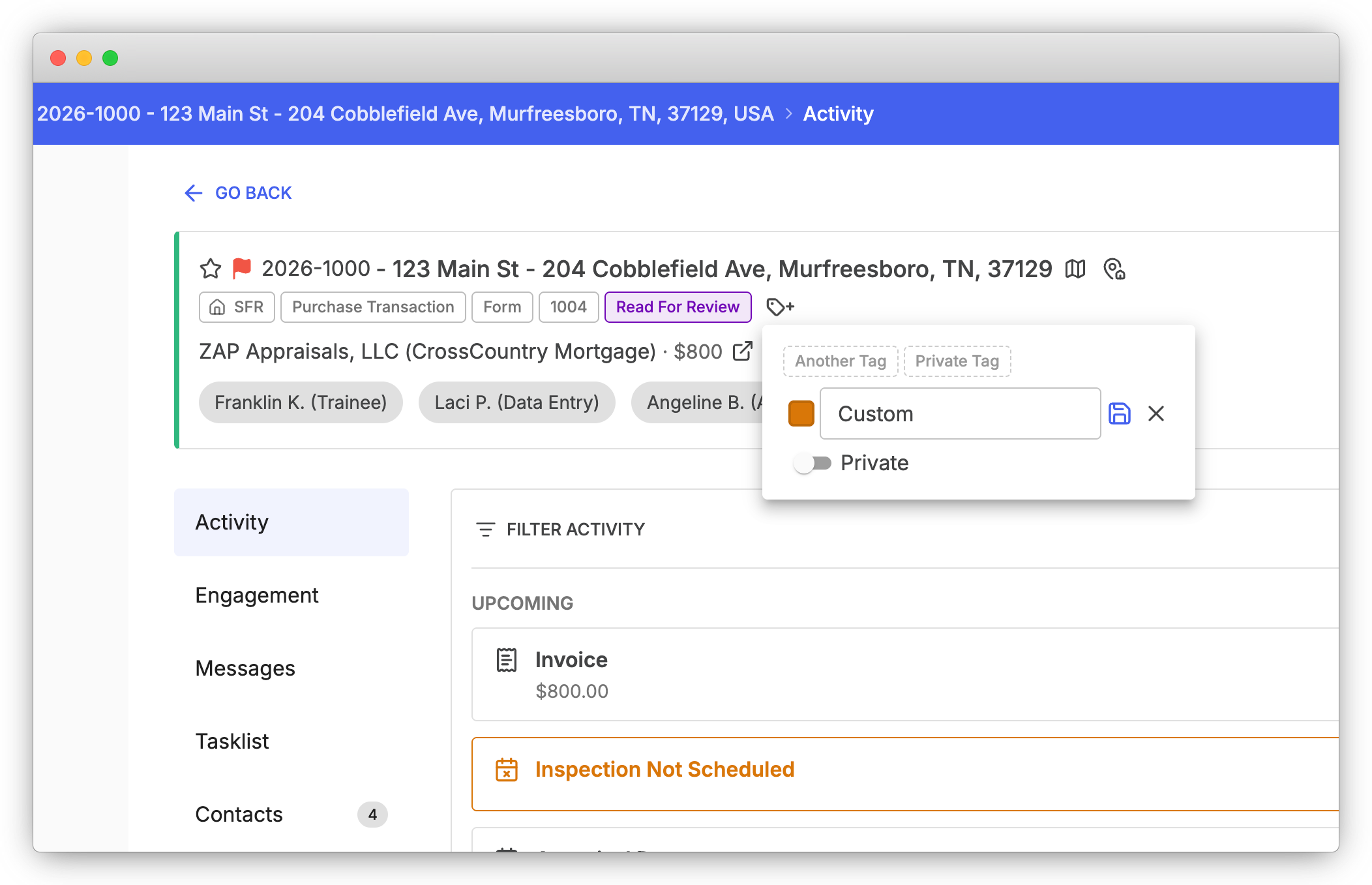
Tags and Priority Flags add a custom layer on top of the fields the order list already filters on. Tags are color-coded labels you define, from “Estate” to a specific lender name, and you can mix them with the built-in filters to slice the order list any way your firm thinks. Priority Flags are a four-level urgency scale (Standard, Low, Medium, Rush) with color-coded icons on each row and in the order header.
Key Benefits
- Customizable labels: Create the categories your firm actually uses
- Organization-wide and personal scopes: Share tags across the team, or keep private tags visible only to you
- Four priority levels: Standard, Low, Medium, and Rush, more nuance than a single Rush checkbox
- Filter the order list to what matters: Stack the tag filter with status tabs to focus on your slice of work
- Visible in assignment emails: Priority appears in the email so the assignee sees urgency before opening the order
How Tags Work
Organization-wide tags are visible to everyone and assignable from any appraisal, good for shared conventions like “Estate Review,” “Complex,” or a specific lender name. Account owners and full-access members manage the org tag list; everyone can assign and remove. Personal tags are visible only to you, marked with a lock icon, good for private tracking like “Follow up Monday” without cluttering the team’s view.
Create tags directly on an appraisal (type a name, pick a color) or in Settings > Appraisal Settings. The Tag filter takes one or more tags and shows only appraisals that have all of them, and it stacks with the built-in filters. Views like “all Estate + Refinance + In Progress” or “all REO + assigned to me + Rush priority” are two clicks away. See the Appraisal Tags support article for setup.
How Priority Flags Work
Click any flag icon on a row to change priority without opening the order. Editing is gated to account owners, full-access, and standard-access roles, so a limited-access user (an inspector or sub-contractor) can see priority but can’t change it.
When an appraisal is assigned, non-Standard priority appears in the assignment email so the assignee sees urgency from the inbox. Priority also passes through to integrations like the ANOW lookup as the standard “Is Rush” boolean, so external tools that only understand the binary still get the right signal.
Part of Your Complete Appraisal Workflow
- Appraisal Tasklists: Build the step-by-step workflow your firm uses for each property type
- File Number Configuration: Define a file-number pattern that new orders generate automatically
- Customer Relationship Manager: Tag and priority data ties back to the underlying clients and contacts
- Activity Feed: Tag and priority changes are recorded alongside everything else that happens on an order
Make the Order List Yours
Open Settings > Appraisal Settings to add your first tags, then click any flag icon on a row to set priority. The order list starts working the way your firm already does.
For a complete overview of features that streamline appraisal workflows, visit our features page.
Recent Posts
Feature Spotlight: Company Branding
Apply your firm's logo and brand colors to invoice PDFs, client emails, the public Client Form, and ...
Read moreFeature Spotlight: Export Appraisal Orders to UAD 3.6
Export any residential appraisal order from Appraisal Inbox as a UAD 3.6 MISMO XML zip and import it...
Read moreHow Long Will UAD 3.6 Inspections Actually Take?
UAD 3.6 inspections will probably take longer at first. Where the new data-capture time actually goe...
Read more